


Monero GUI Wallet Handbook
Welcome to the unofficial comprehensive guide. This documentation compiles knowledge from the official repositories and community experience.
1. Download Official Binaries
Windows
64-bit Installer
Download .exemacOS
Universal (Intel/M1/M2)
Download .dmgLinux
64-bit Tarball
Download .tar.bz22. OS Preparation (Antivirus)
Windows Users
Monero software includes a miner. Windows Defender classifies this as "PUA" (Potentially Unwanted Application) and will delete it upon download.
- Create a folder:
C:\Monero - Go to Windows Security > Virus & threat protection > Manage settings > Exclusions.
- Add the
C:\Monerofolder. - Only then download or extract the wallet into this folder.
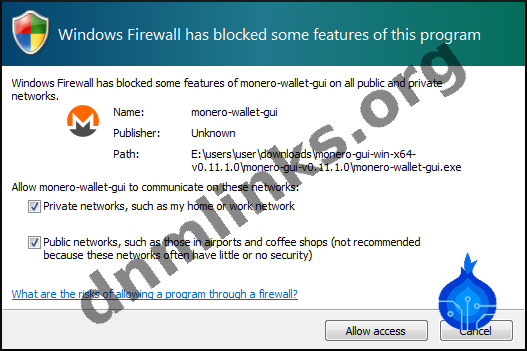
On first launch, check both "Private" and "Public" networks in the firewall pop-up.
3. Verification (PGP)
Windows Verification (Ggp4win)
- Install Gpg4win.
- Open **Kleopatra** (installed with Gpg4win).
- Import Key: Go to File > Lookup on Server. Search for `binaryfate`.
Fingerprint must match:81AC 591F E9C4 B65C 5806 AFC3 F0AF 4D46 2A0B DF92. Import it. - Download the hashes.txt file.
- In Kleopatra, click Decrypt/Verify and select `hashes.txt`.
- It should say "Signature is valid".
- Check Binary: Open PowerShell in your download folder:
- Compare output to the hash in `hashes.txt`.
certUtil -hashfile monero-gui-win-x64-v0.18.4.5.zip SHA256
macOS Verification (Terminal)
Install GPG Suite if `gpg` command is missing.
# Output must contain fingerprint: 81AC 591F...2A0B DF92
curl -o hashes.txt https://www.getmonero.org/downloads/hashes.txt
gpg --verify hashes.txt
# Calculate your file's hash
shasum -a 256 monero-gui-mac-x64-v0.18.4.5.dmg
Linux Verification (CLI)
gpg --import binaryfate.asc
# Verify Fingerprint:
gpg --fingerprint binaryfate
# Must match: 81AC 591F E9C4 B65C 5806 AFC3 F0AF 4D46 2A0B DF92
wget -O hashes.txt https://www.getmonero.org/downloads/hashes.txt
gpg --verify hashes.txt
sha256sum monero-gui-linux-x64-v0.18.4.5.tar.bz2
4. First Launch
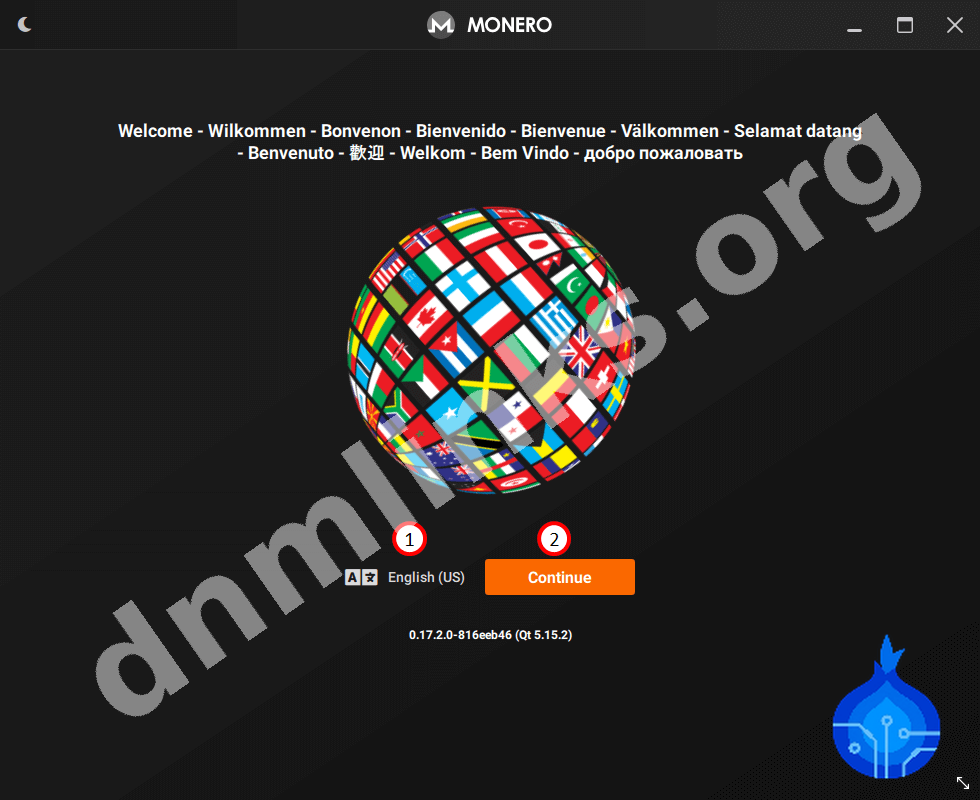
Run monero-wallet-gui. Select your language.
5. Wallet Modes
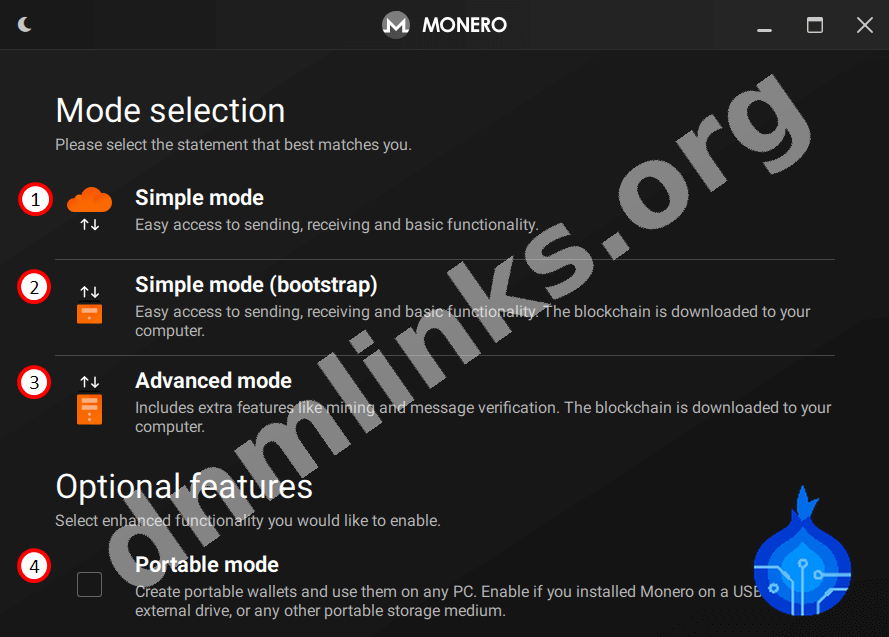
Choosing the right mode is essential for your storage and privacy needs.
Simple Mode
No download required. Connects to a Remote Node. Fast.
Privacy: Medium (Node sees IP)Bootstrap Mode
Most Popular. Uses Remote Node instantly, downloads blockchain in background (~150GB).
Privacy: High (Eventually self-hosted)6. Create or Restore
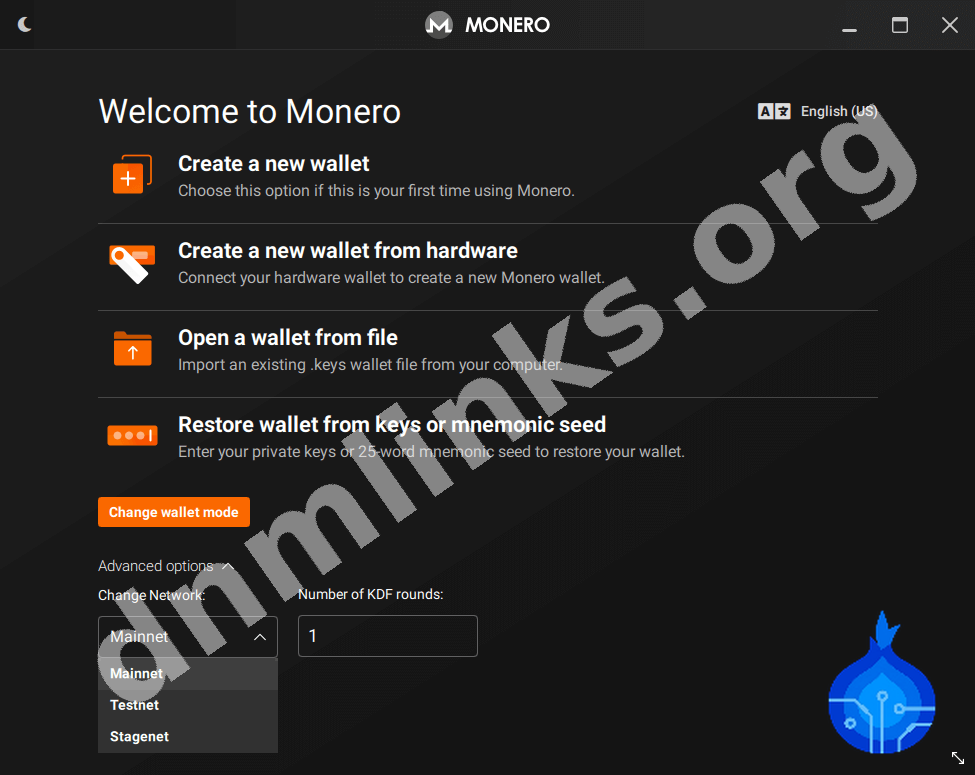
A. New Wallet
B. Hardware Wallets (Ledger / Trezor)
Using a hardware device keeps your keys offline, immune to PC viruses.
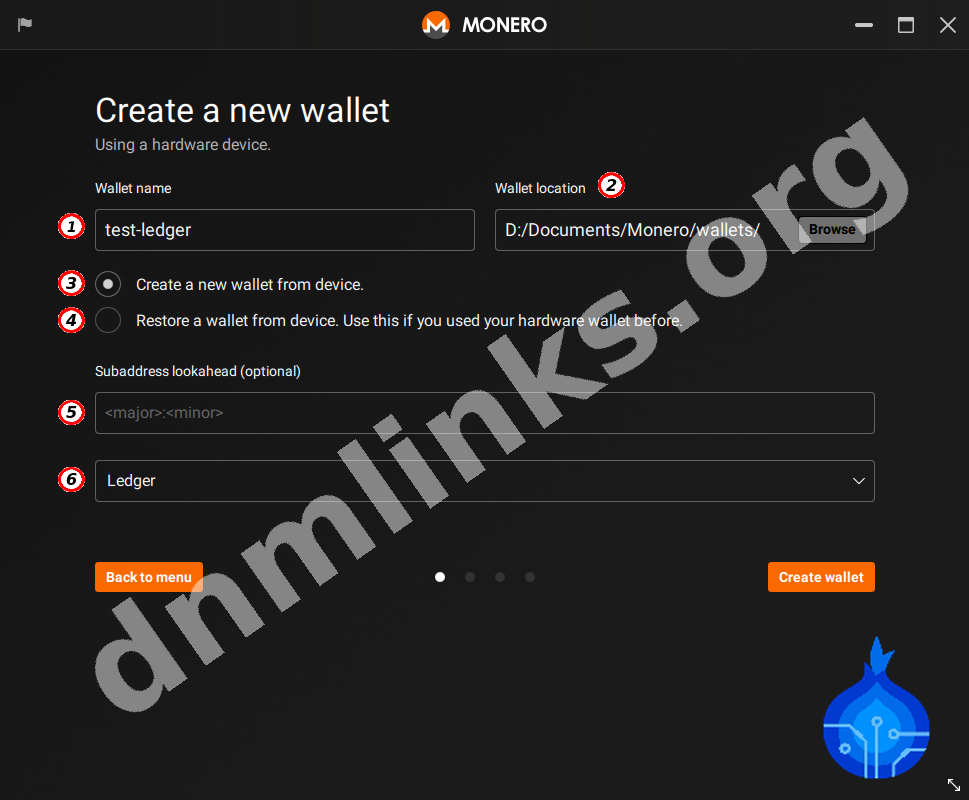
- Ledger: Install Monero App via Ledger Live. Close Ledger Live. Open Monero App on device. Select "Create form hardware".
- Trezor Model T: Quit Trezor Suite. Connect device. Select "Create from hardware".
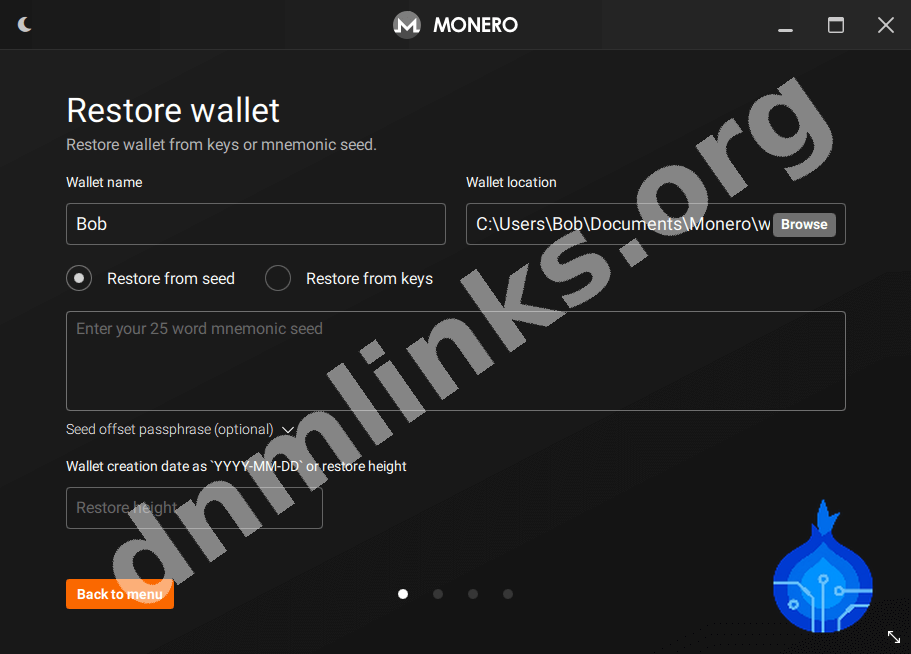
C. Restore from Seed
Restore Height: If restoring, you must set an approximate date or block height of when the wallet was created. If you leave it 0, the wallet scans from 2014 (takes days).
7. Accounts & Balances
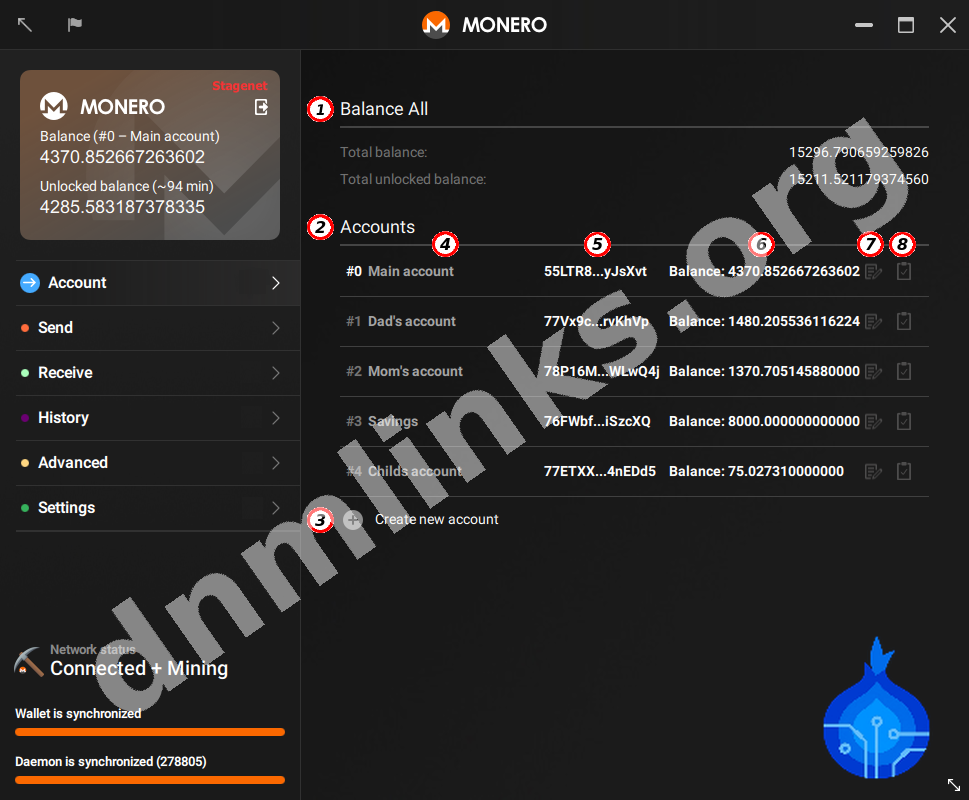
The GUI allows multiple "Accounts" within one wallet (like Checkings/Savings). Each has its own history and subaddresses, but all are backed up by the same 25-word seed.
8. Sending Funds
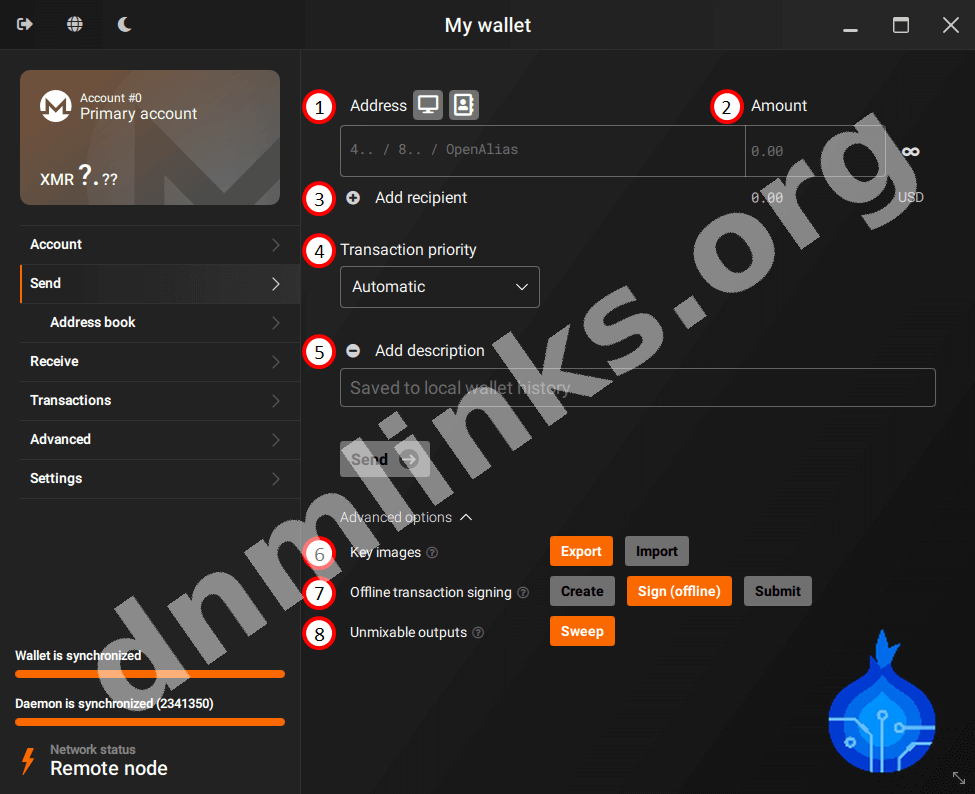
Privacy is mandatory in Monero.
- Address: The recipient's Monero address (starts with 4 or 8).
- Priority: Adjusts fee. "Automatic" is usually fine.
9. Receiving & Merchant Mode
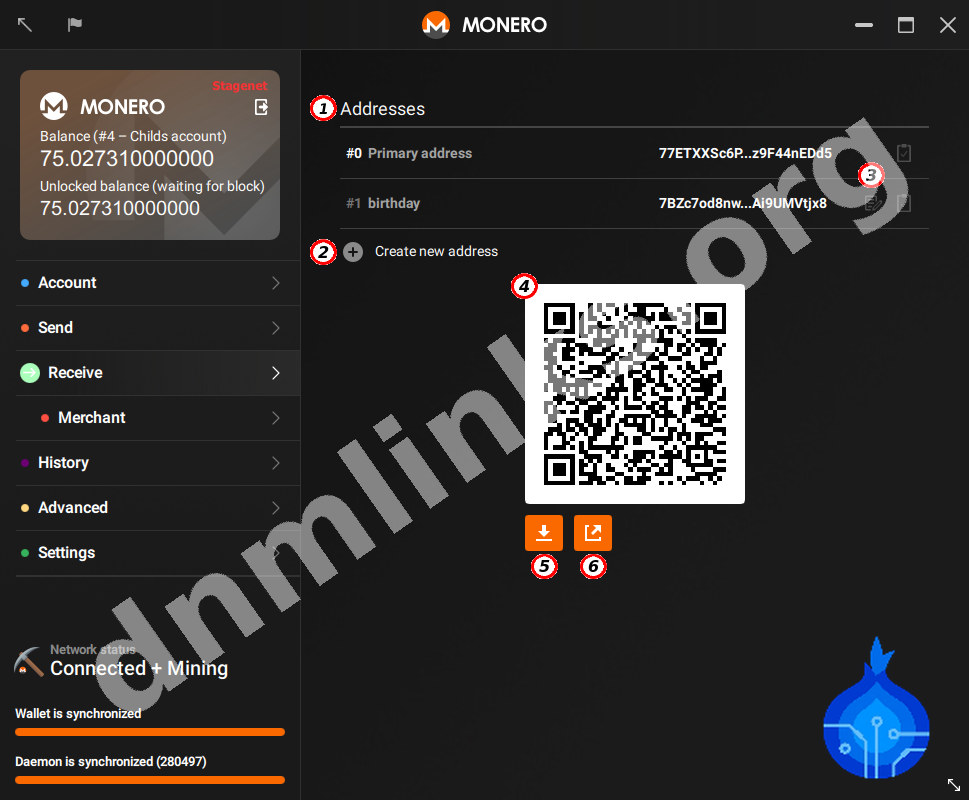
Subaddresses (Privacy)
Do not give your primary address (starts with 4) to everyone. Click Create new address to make a Subaddress (starts with 8). Use a unique one for every exchange/person.
Merchant Mode
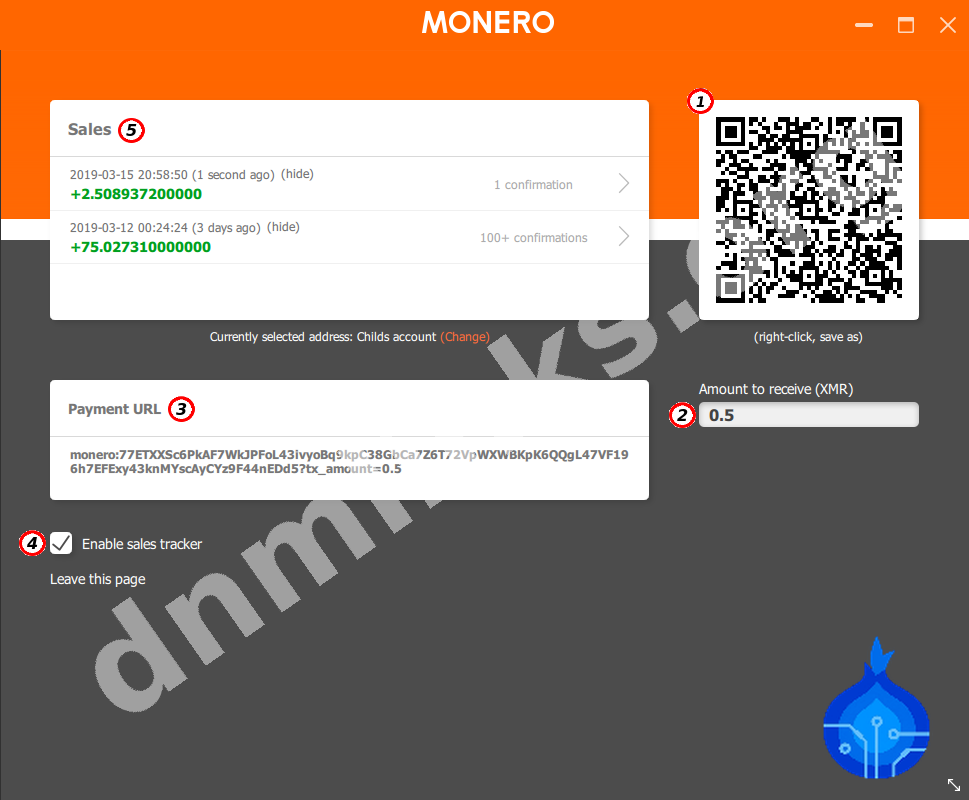
A simplified "Point of Sale" view for accepting payments in person.
10. History
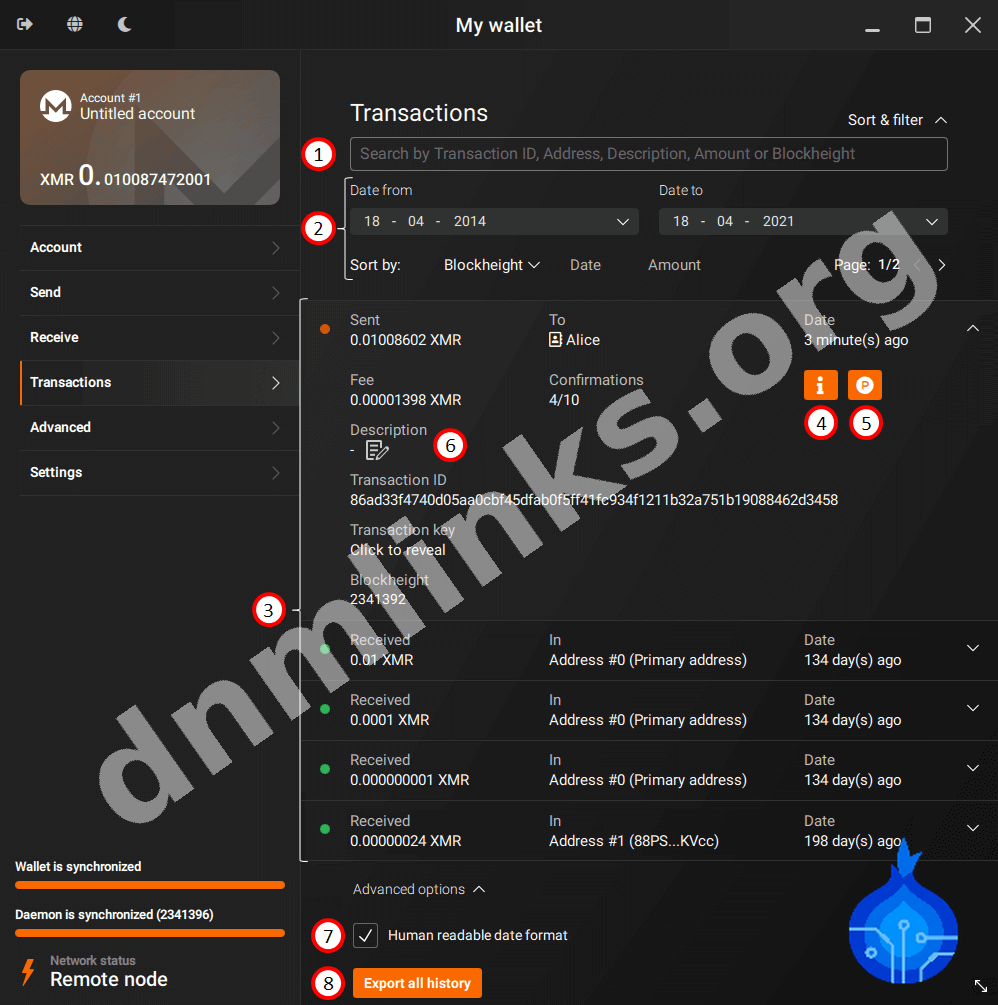
Status Icons:
- Pending: In memory pool, waiting for a block.
- Confirmed: Successfully mined.
- Failed: Node rejected it (usually sync issue).
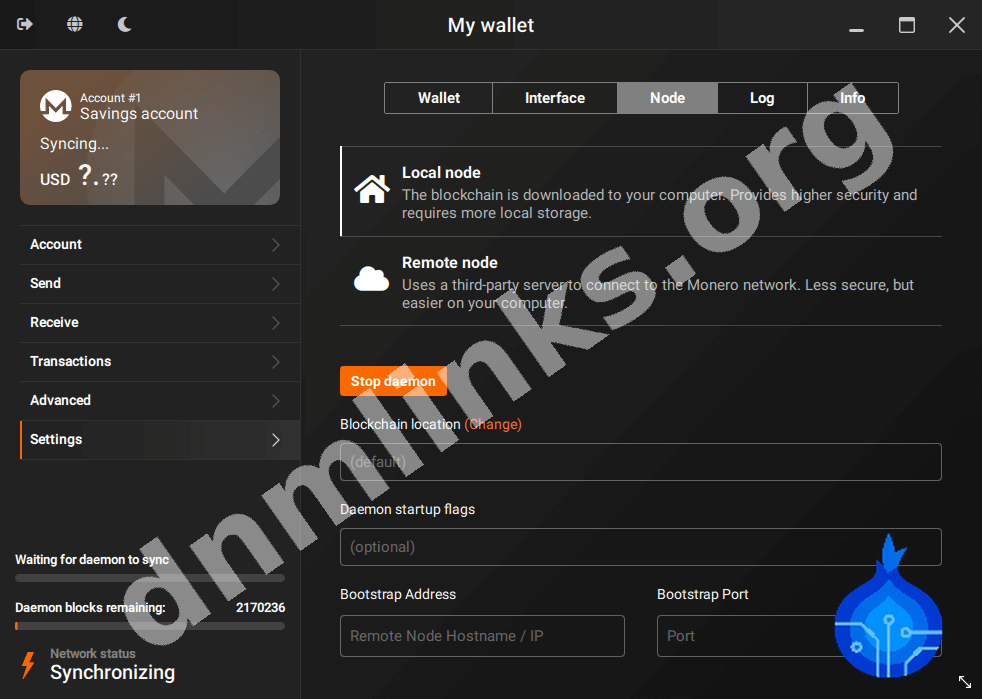
11. Remote vs Local Nodes
Remote Node (Easy)
Uses a public server. Go to Settings > Node. Add node.moneroworld.com port 18089.
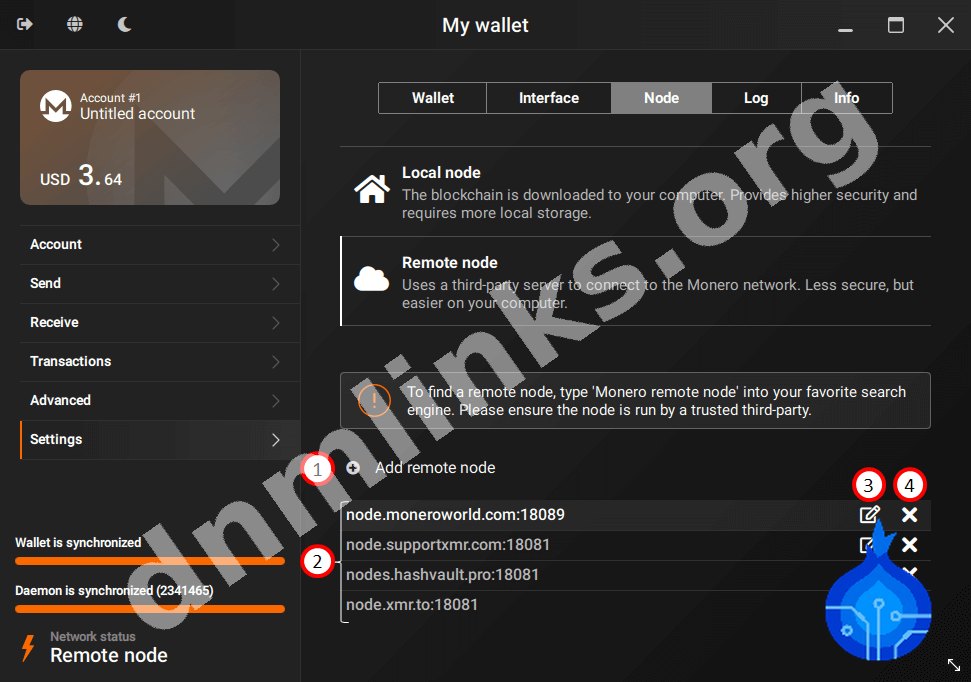
Local Node (Private)
Downloads the blockchain to your disk. Most secure.
12. Advanced Privacy: Tor & I2P Nodes
To maximize privacy, you can route your wallet's traffic through Tor or I2P, hiding your IP address from the node you connect to.
Setup via GUI (Tor)
- Install Tor Browser or the Tor daemon.
- Ensure Tor is running (Port 9050 for daemon, 9150 for Browser).
- In Monero GUI: Settings > Interface > Socks5 Proxy.
- IP:
127.0.0.1Port:9050(or 9150). - Go to Settings > Node. Add a Tor (`.onion`) Remote Node. Example:
monerowinf5...onion.
Setup via Config (Advanced)
To run your Local Node over Tor (making it a Hidden Service), edit your bitmonero.conf:
tx-proxy=tor,127.0.0.1:9050
anonymous-inbound=YOUR_ONION_ADDRESS:18083,127.0.0.1:18083
13. Solo Mining
You can mine Monero using your CPU directly in the wallet ("Advanced Mode" only).
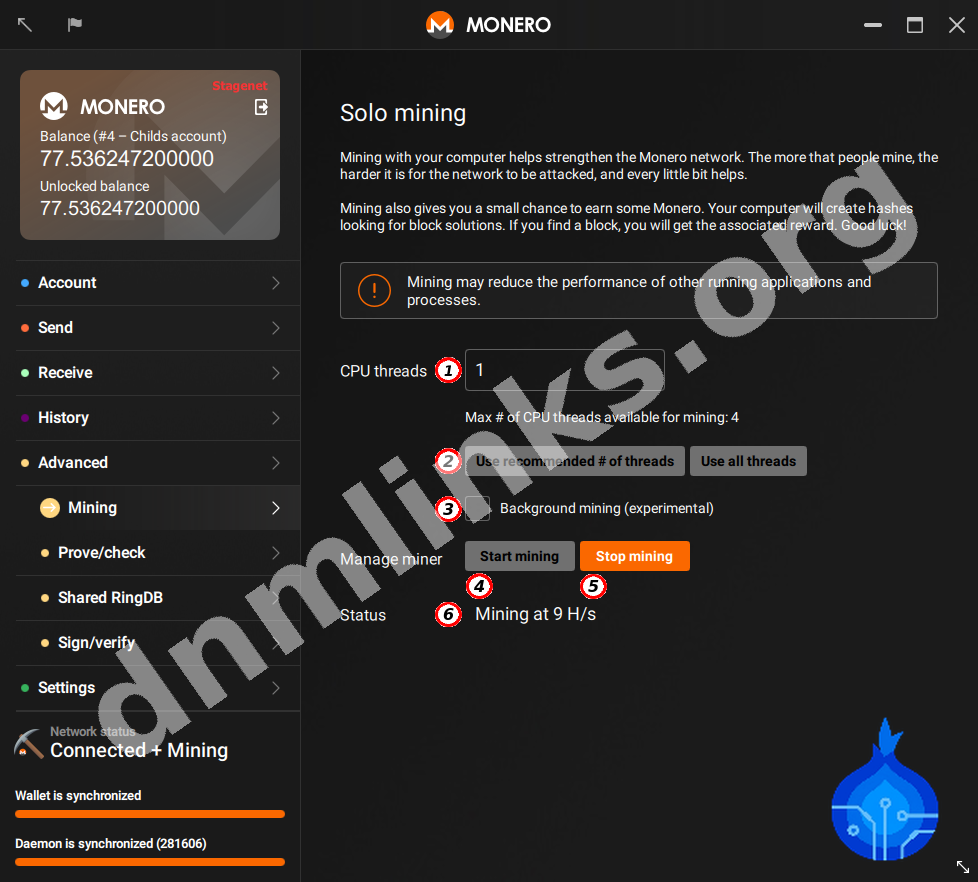
This is "Solo Mining". You win the entire block reward (~0.6 XMR) or nothing. It is a lottery. For consistent income, you must use P2Pool or other pool software (XMRig), not the wallet itself.
14. Prove / Check (Auditing)
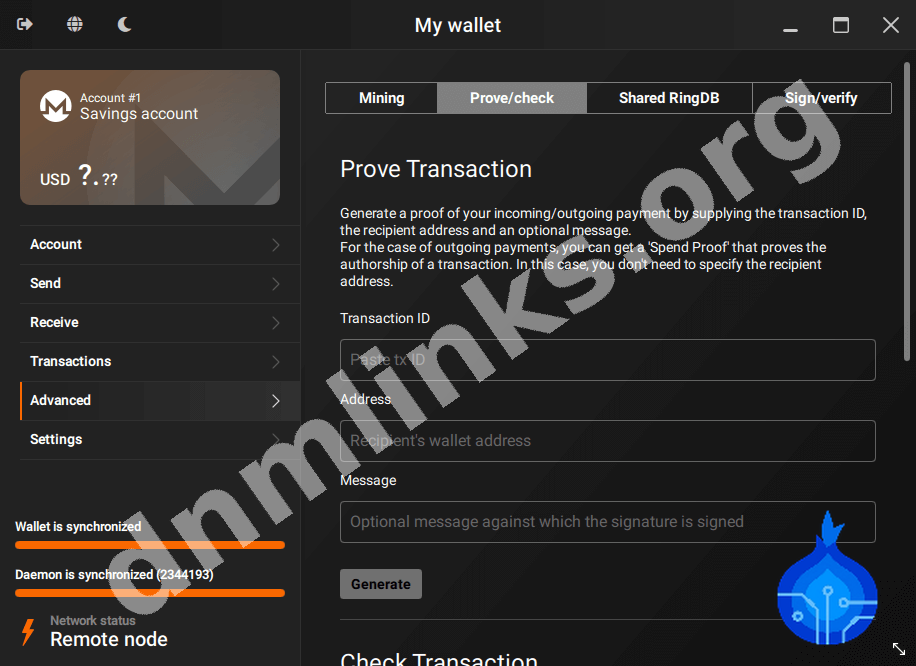
Since the blockchain is opaque, you need proofs to show you paid someone.
- Prove: Enter Transaction ID and Address to generate a signature snippet.
- Check: Enter the signature provided by someone else to confirm they paid you.
15. Sign & Verify
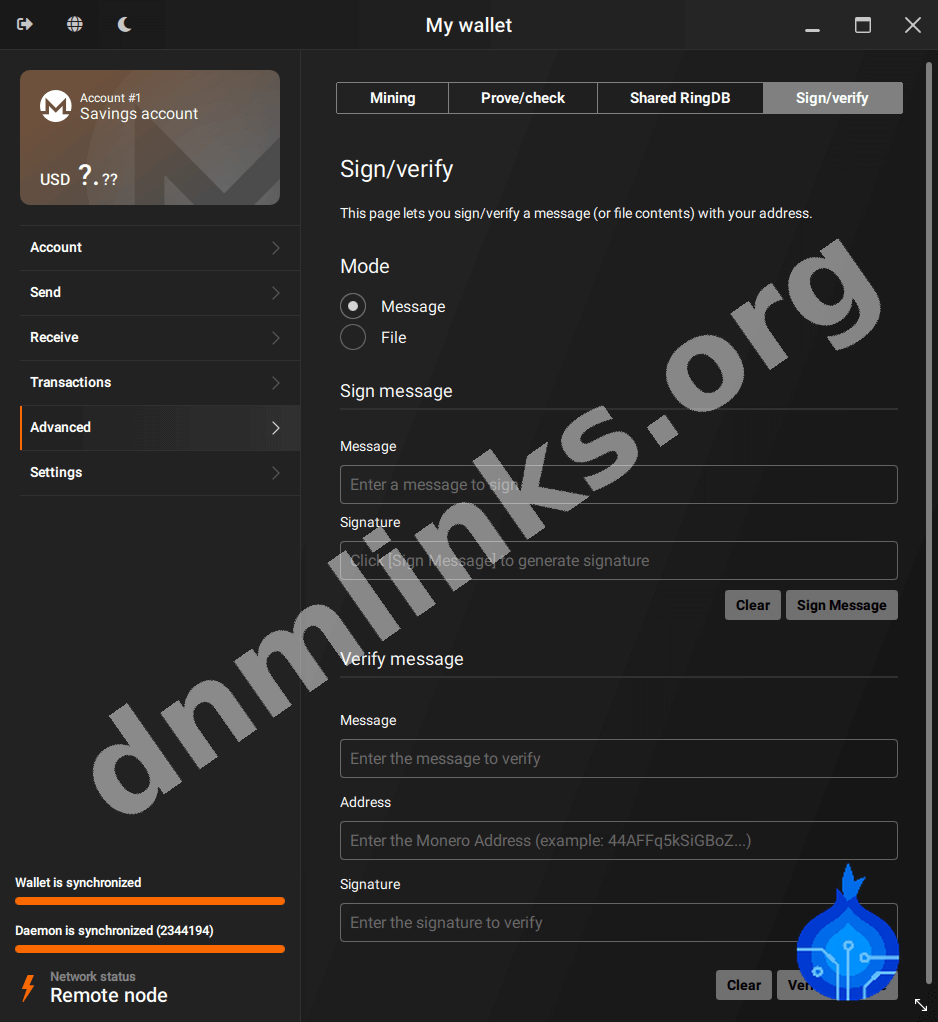
Cryptographically sign a message or file to prove you own a specific Monero address/wallet without revealing your seed or balance.
16. Troubleshooting & FAQ
Error: "Daemon failed to start"
Cause: Antivirus deleted monerod.exe.
Fix: Check AV Quarantine. Restore file. Add folder exception. (See Section 2).
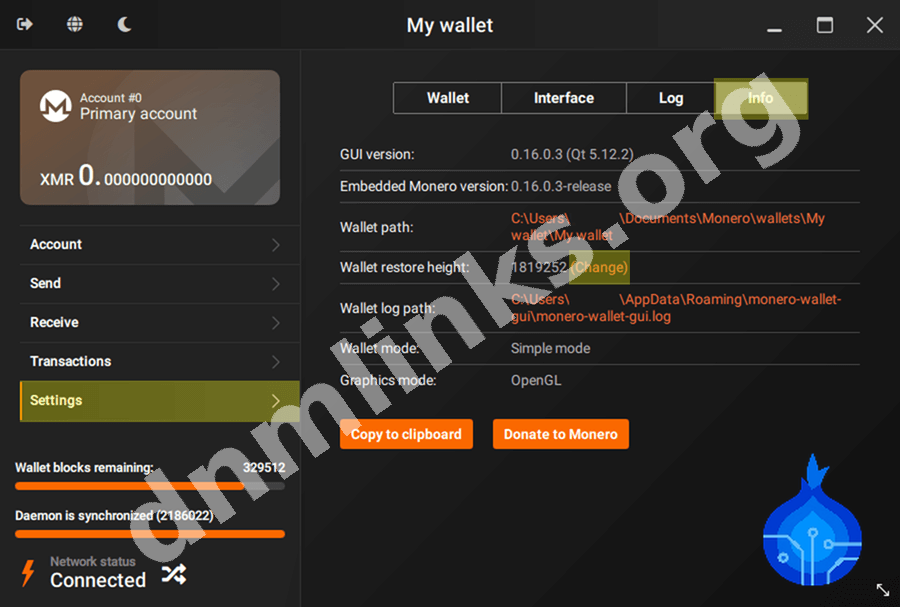
Wallet Balance is Zero (after restore)?
Cause: Wrong Restore Height.
Fix: Go to Settings > Info. Click "Change" next to Wallet Restore Height. Set it to a date before you first received XMR.
Transaction "Pending" forever
Cause: Daemon not synced or no connections.
Fix: Check bottom-left bars. If using Local Node, ensure port 18080 is open. Or switch to a Remote Node in Settings.
Special Characters in Username (Windows)
Issue: Windows Usernames with non-ASCII characters (é, ü) cause path errors.
Fix: Move wallet files to C:\Monero\Wallets\.


